
International eSIM that connects you wherever you go | MolaHop

International eSIM that connects you wherever you go | MolaHop

Install and activate your MOLA eSIM on iPhone

icon_install-step_2x_3206a204-c3e2-4ee9-b603-794f4409e6e1

Install just hours before your trip and activate during your flight or when you arrive at your destination.
icon_install-step-qr_2x_57ae3915-7900-419f-92f4-967181a72491

Select “Install with QR Code” if you have the code on another device to scan.
icon_scan-step3-qr_2x_3528e099-7a99-4ccb-b65c-b00d2ee9f3fb

Select “Install Manually” if you are unable to scan the QR code.
icon_install-step_2x_3206a204-c3e2-4ee9-b603-794f4409e6e1 (1)

Install just hours before your trip and activate during your flight or when you arrive at your destination.
icon_scan-stepOS_2x_73329d6f-affb-4fda-b4a0-022a7079c5ea

Select the device 
on which you will perform the installation.
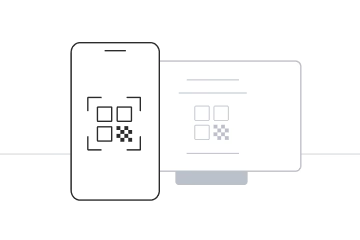
icon_install-step-qr_2x_57ae3915-7900-419f-92f4-967181a72491 (1)

Select “Install with QR Code” if you have the code on another device to scan.
icon_scan-step3-qr_2x_3528e099-7a99-4ccb-b65c-b00d2ee9f3fb (1)

Select “Install Manually” if you are unable to scan the QR code.

Learn step by step

Select the type of installation you wish to perform

icon_before-install

Before you begin installation with a QR code, there are a few important points to be aware of:

icon_before-install

Before you begin manual installation, there are a few important points to be aware of:

Let’s get started together

Open your email

Find the email where we sent you the Android activation code when you made the purchase. If you have not received your code, please contact us.

Open “Settings” on your device

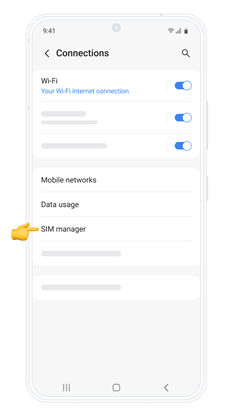
Press “Connections” and enter the “SIM card manager”. Now press “Add eSIM” to start the installation process.

Follow the installation steps

Select “Scan QR from service provider”, and press “Enter activation code”. Follow the steps that your device displays.

Congratulations! Your plan has now been installed and is ready to activate.

Activation guide for your eSIM

icon_before-install (1)

To activate:

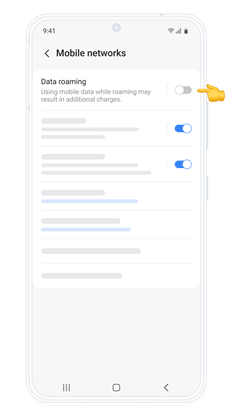
Go back to “Connections” and enter “Mobile networks” and turn on “Data roaming” to activate your eSIM.
en-figGalaxy-ACTIVATION-1
Go back to “Connections” and enter “Mobile networks” and turn on “Data roaming” to activate your eSIM.
en-figGalaxy-ACTIVATION-1
Go back to “Connections” and enter “Mobile networks” and turn on “Data roaming” to activate your eSIM.
en-figGalaxy-ACTIVATION-1
Open “Settings”, go to “Connections” and then go to the SIM card Manager.
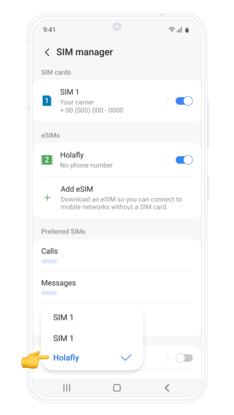
Under “Preferred SIMs”, press “Mobile data” and select your new Holafly eSIM.
Go back to “Connections” and enter “Mobile networks” and turn on “Data roaming” to activate your eSIM.
en-figGalaxy-ACTIVATION-1
en-figGalaxy-ACTIVATION-New2b-3
en-figGalaxy-ACTIVATION-3